When you create a secret, it is stored in a vault. BlazeMeter supports both an internal vault and external (private) vault integrations.
To add secrets to the internal vault, see Create and manage secrets.
Internal vault (BlazeMeter vault)
BlazeMeter provides a built-in vault for storing and managing secrets within the platform.
-
Secrets are managed at the workspace level
-
Users can reference secrets without exposing their values
-
Secret values are masked during execution and reporting
External vault integrations
You can connect BlazeMeter to an external vault managed by your organization.
-
Enables use of existing secure infrastructure
-
Keeps sensitive data within your network boundary
-
Supports organizations with strict security requirements
Depending on configuration, you can select which vault source to use when working with secrets.
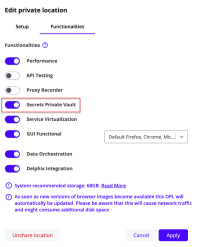
When integrating your external vault, ensure that the Secrets Private Vault functionality is enabled for your private location (formerly known as OPL). To learn more, see Private Locations.
Vaults is a feature that is limited to Enterprise customers. To enable vaults, contact BlazeMeter Support or your account manager.
Vault Integration page
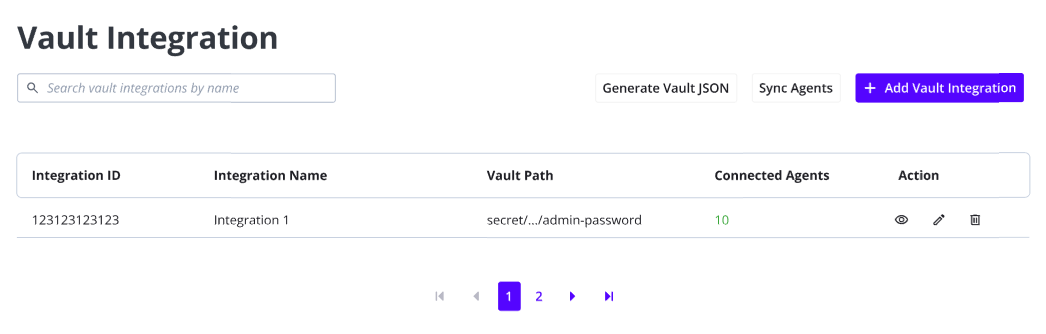
You can integrate and manage vaults on the Vault Integration page in your Workspace settings. All workspace members can view all vaults integrations configured in the workspace.
Integrate a vault integration
To begin using secrets stored in an external vault, you have to integrate the vault into your workspace. You can integrate vaults into your BlazeMeter account using two methods:
-
Integrate directly in BlazeMeter: Add the vault integration by entering all the needed information directly on Vault Integrations page in your workspace settings.
-
Integrate using JSON and adding it to your private location: Generate JSON where you can then add your credentials. Once your credentials are entered, copy the JSON to your external vault. This method is considered more secure because you do not need to enter any of your vault credentials in your BlazeMeter account.
Integrate a vault directly in BlazeMeter
-
Log in to your BlazeMeter account.
-
Click the Cog icon
 at the top right of the BlazeMeter UI to open the Settings.
 -
Navigate to Settings > Workspace > Vault Integrations.
-
Click the + Add vault integration button.
-
Enter the:
-
Intergration name: Can be any name you choose. You can only use lowercase letters, numbers, underscores, and hyphens.
-
Integration path: Enter the path for your vault integration.
-
Vault credentials: (Optional) Enter the credentials for your vault integration.
-
-
Click Add vault integration.
Integrate a vault using JSON to add to your private location
If you want maximum control over your sensitive data, you can integrate your vault directly in your private location environment. This approach keeps all data within your own systems, ensuring that nothing is stored in BlazeMeter and that your sensitive information remains fully under your control.
-
Log in to your BlazeMeter account.
-
Click the Cog icon
at the top right of the BlazeMeter UI to open the Settings. -
Navigate to Settings > Workspace > Vault Integrations.
-
Click the Generate vault JSON button.
-
When the JSON is ready, click the Copy to Clipboard button.
-
Enter your vault credentials in the JSON and using Docker or Kubernetes.
Sync your agents
After you add or update a vault integration, click the Sync Agents button. This updates all agents with your latest changes and helps prevent vault downtime.
View, edit, and delete a vault integration
Once you have created a vault integration in your workspace settings, you can further manage it if necessary. In the Action column on the Vault Integration page, you can choose to:
-
View
 : View the vault integration information and any associated Private Locations and agents.
 -
Edit
 : Edit any previously entered information about the vault integration.
 -
Delete
 : Delete the vault integration. This cannot be undone.