BlazeMeter University onboarding FAQ
BlazeMeter University has moved to a new learning platform. See the FAQs below.
For further assistance with your migrated account, feel free to contact us at Education.Help@Perforce.com.
How do I sign in with BlazeMeter SSO?
Are you a returning BlazeMeter user?
- Log on to https://a.blazemeter.com.
- Open the Help Center.
- Click the BlazeMeter University button.
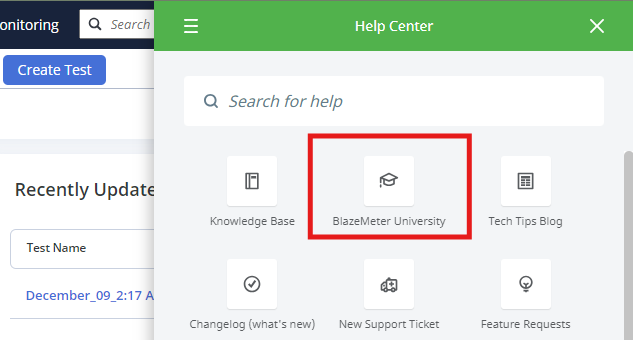
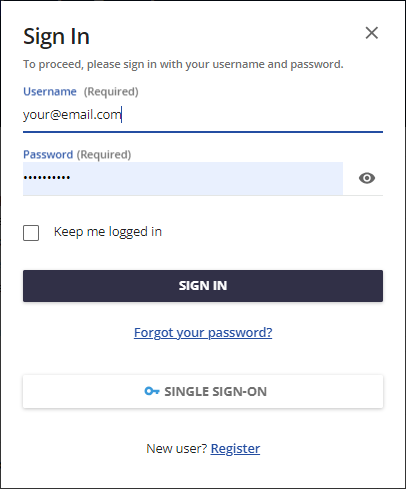
- On the university page, click Sign In, then click Single-Sign On in the dialog.
- Select a course from the list and click Enroll to start learning!
How to log on for the first time?
Navigate to university.blazemeter.com. You see the list of available course.
- If you have neither a Perforce Learning nor a BlazeMeter account yet, click Register and enter your email address and password to register.
-
If have a Perforce Learning account from another Perforce product, log on through that Perforce product's learning portal. You will have access to BlazeMeter trainings as well.
-
If you do not have a Perforce Learning nor a BlazeMeter account yet, click Register and enter your email address and password to register.
-
If you are a returning BlazeMeter user:
- Click Sign in.
- Click Single Sign-On.
Select a course from the list and click Enroll to start learning!
How do I sign into my existing account?
If you have self-registered in the old BlazeMeter University, first, reset your password. Wait for the reset email and then log in with your email address and your new password.
A quick video tutorial is available to guide returning users through the first sign-in process.
How do I register a new account?
If you do not have an account in BlazeMeter University already, register a new account.
What happened to my in-progress or incomplete courses?
Courses that were in progress have been reset on the new platform, so you’ll need to restart these from the beginning.
Where did the subportals go?
The subportals are no longer available separately. All your courses and past achievements can be found in the new portal.