Manage sensitive data securely with secrets
Secrets are objects that contain sensitive data, such as passwords, tokens, credit card numbers, or any other data that shouldn't be exposed. You can store secrets in the BlazeMeter default vault, or in an external vault. By using secrets, you do not have to hard code any sensitive data into your test scripts. Whenever an enabled secret appears in reports or logs during and after run time, the value of the secret is replaced with asterisks (*).
To use external vaults and secrets, you need to create them in your workspace settings. To learn more about vaults and secrets in your workspace, see Create and manage vaults.
If your test scenarios require the use of secrets, such as API keys, token, or credentials, be sure that:
- only production and non-sensitive secrets are used.
- all secrets are strictly limited in scope and privilege, and access only test-specific resources or data.
- secrets should be temporary and rotated regularly.
- you avoid the use of secrets that provide access to productions environments or sensitive customer data.
Once you created the secrets in your workspace, you can use them in your test script.
Use secrets in YAML
In YAML, you can reference a configured secret using the prefix BZM_SECRET.
${__P(BZM_SECRET_secret1)}Secrets included in your test script are automatically detected when you upload your test script when your test script is written in YAML. The Secrets section appears as enabled, but is read only.

If no secrets are detected in your YAML script, you can manually choose which secrets to include.
Manually enable secrets
You can manually enable secrets when:
-
using executors other than YAML. Because BlazeMeter cannot automatically detect secrets that are not written in YAML, you need to configure the secrets in your workspace settings and then enable them manually.
-
you want to enable Secrets due to the possibility of sensitive data showing in test results or logs. Any selected secrets that appear in your test results or logs are replaces with asterisks (*).
To enable the Secrets section and choose which configured secrets to include in your test:
-
On the test configuration page, scroll to the Secrets section and toggle the button ON.
-
(Optional) Choose the Secret source. If you don't have any external vaults integrated, leave the default secret source.
-
Select all relevant secrets for your test script. Search for secrets using the search bar. To only show the secrets you have already selected, click Show Selected Secrets.
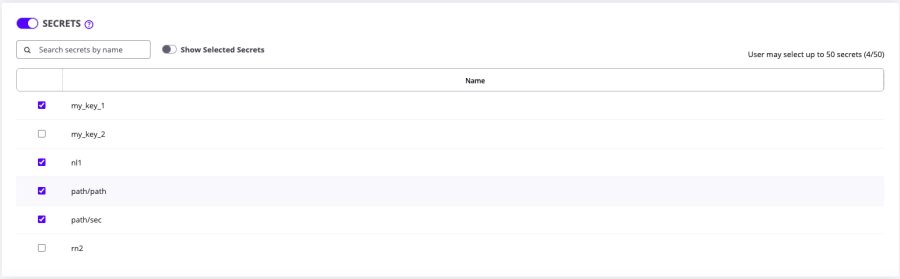
You can change the secret source after selecting secrets to view secrets from another source. However, if you select secrets from a different source, all previously selected secrets are cleared.