Generate paths for dynamic responses
Helper wizards for XPath and JSON Path help you generate XPaths and JSON Paths in a transaction so you don't have to enter the path manually.
-
In the request body matcher, define conditions on the request of various types such as XML, JSON, RegEx, matches XPath, matches JSON Path and so on. To learn more, see Generate paths for request matching and dynamic responses.
-
The helper wizard for responses helps you create dynamic values to pull the information from the request and render it in the response, so you do not have to worry about entering the syntax manually.
Add dynamic values to responses
The ‘Edit wizard’ helps you create dynamic values (magic strings) in the response content. Magic strings are basically references to information or data from an incoming request that will be replaced with actual values in the response from the service. The wizard switches automatically between XPath and JSON path based on the type of request body. For all other http related entities, the wizard will generate its appropriate magic strings syntax of the request data.
Follow these steps:
- Go to the Service virtualization tab and click Asset catalog.
- In the Transactions tab, expand an existing transaction.
- In the Response section, click the Body tab.
- Type or paste your response content in the text area.
If the content is a valid JSON or XML, an Edit wizard link shows on the right.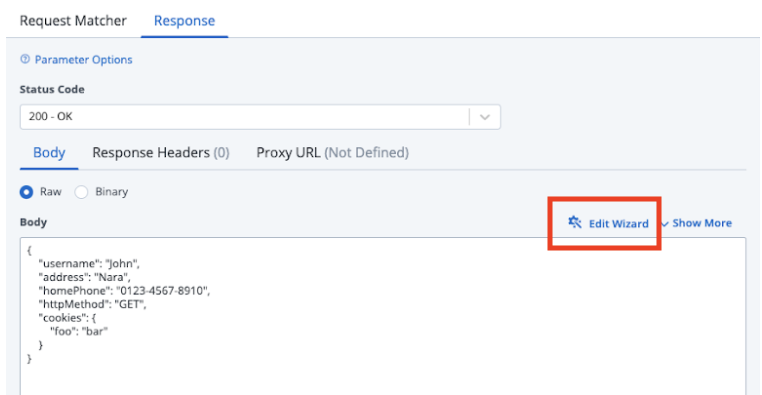
- Click the Edit wizard link.
A pop-up window with the response content that you entered in the text area shows. The text field contains the original values you entered and an Expression button next to each field to set a dynamic value on that field.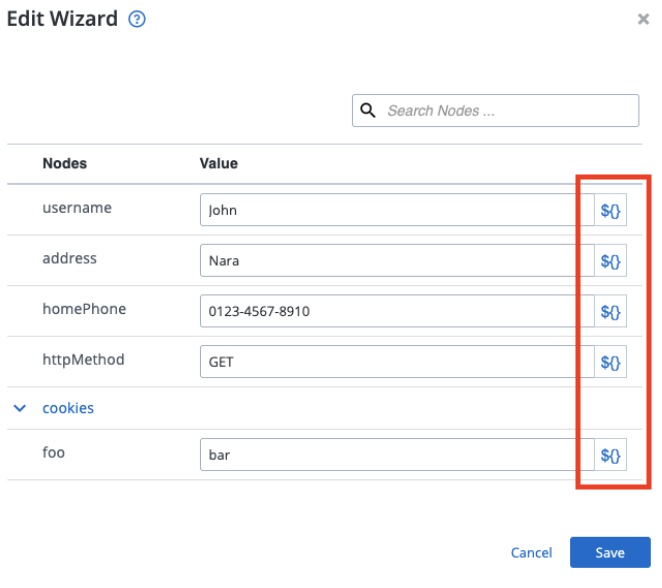
- Click the Expression button.
A detailed subsection displays all the request information that was found in the transaction. This includes Request body, Request query parameters, Request headers, Request cookies and Common parameters.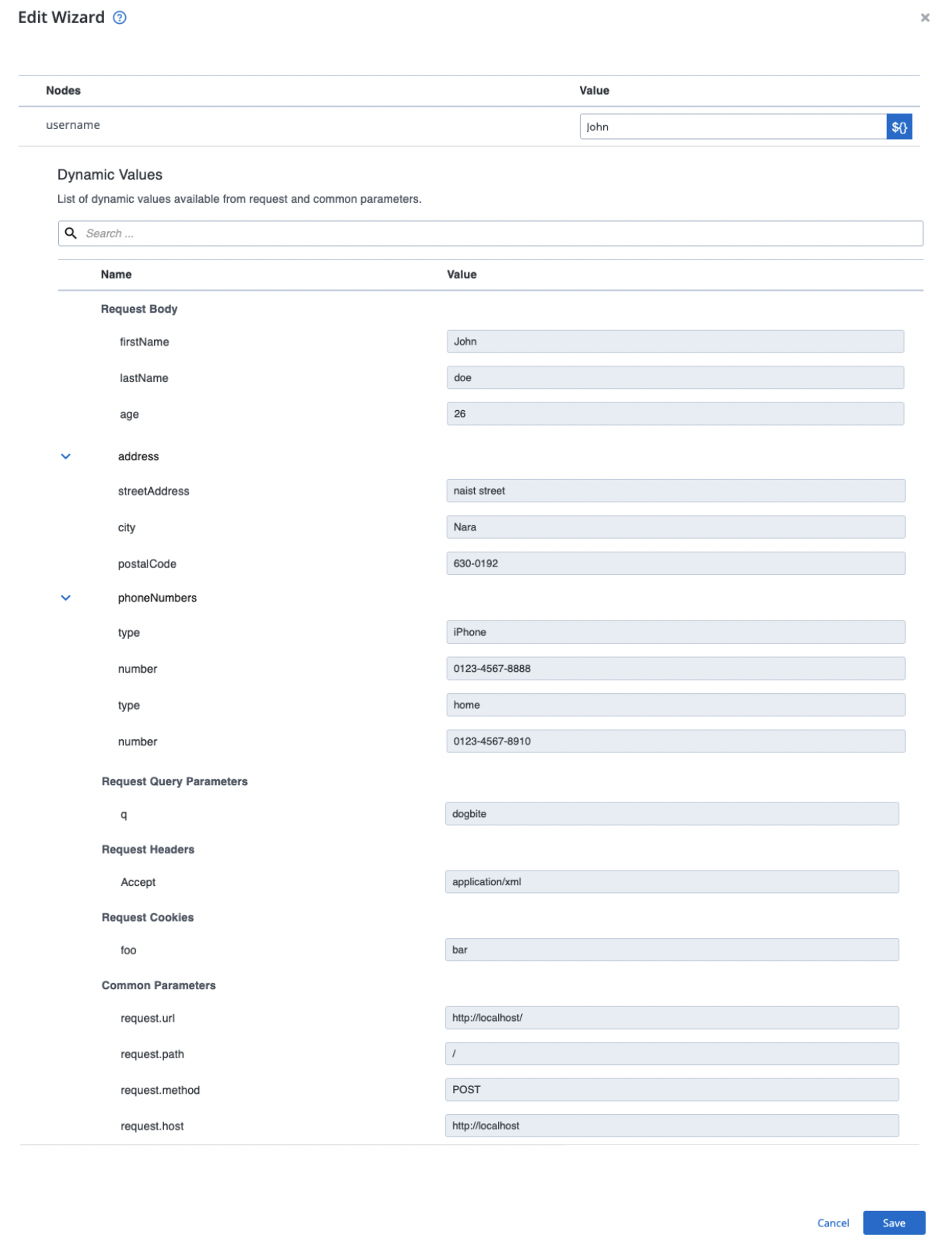
- Map the request information to the appropriate fields.
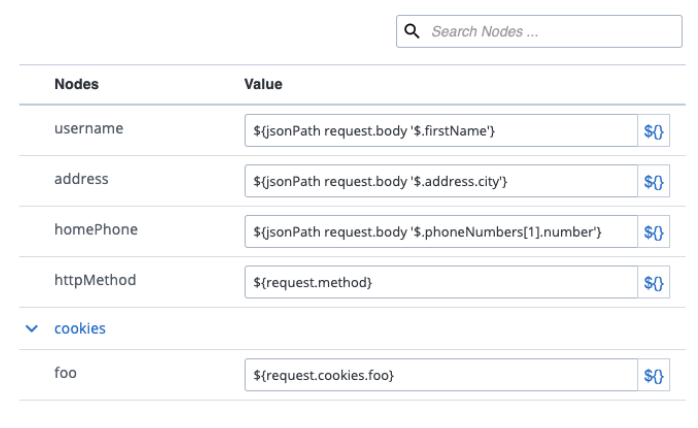
- Click Save. The original response in the text area is replaced and the magic strings that were generated based on your selection are used.
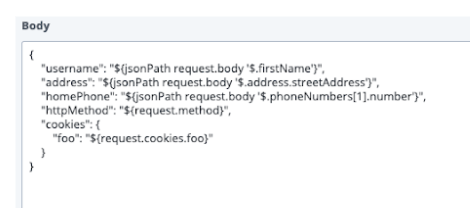
If you have used XPath or JSON expressions to create matchers, the node display is kept in sync with these existing matchers.