Generate paths for request matching
Helper wizards for XPath and JSON Path help you generate XPaths and JSON Paths in a transaction so you don't have to enter the path manually.
-
In the request body matcher, define conditions on the request of various types such as XML, JSON, RegEx, matches XPath, matches JSON Path and so on.
-
The helper wizard for responses helps you create dynamic values to pull the information from the request and render it in the response, so you do not have to worry about entering the syntax manually. To learn more, seeGenerate paths for request matching and dynamic responses
This topic covers:
- Add a request matcher helper to an existing transaction
- Match all conditions
- Best practices for XML content in generator wizards
Add a request matcher helper to an existing transaction
Follow these steps:
- Go to the Service virtualization tab and click Asset catalog.
- In the Transactions tab, expand an existing transaction.
- In the Request matcher section, click the Body tab.
- Click + to define a body matcher.
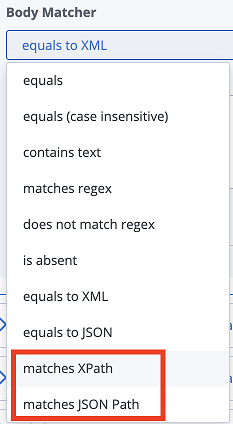
- Select matches XPath or matches JSON Path.
Use the Selection wizard to define paths. The following screenshot shows an example of XML XPath matching, but the same procedure is valid for JSON Paths as well.
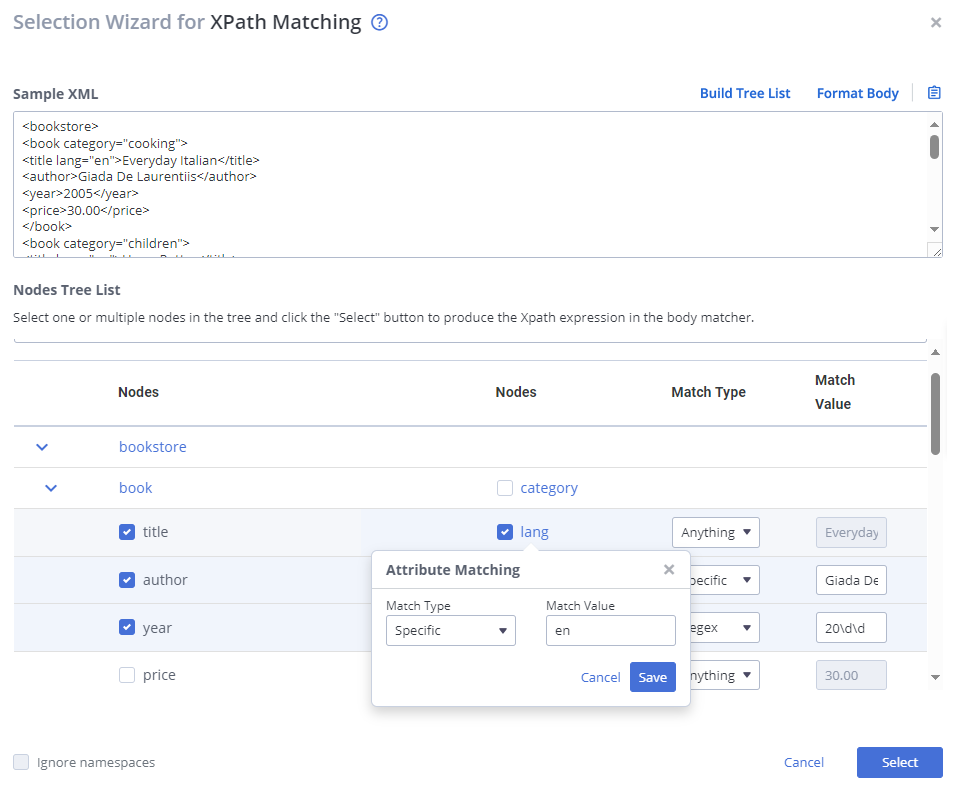
Follow these steps:
- Click Selection wizard.
- Paste your XML in the Sample XML / Sample JSON text field.
- Click Build tree list.
Under Nodes tree list, a tree-based selector is generated. If you are editing transactions created from a RR-pair import, sample content is automatically taken from the Equals XML or Equals JSON body matchers. The wizard throws an error when the XML is invalid and if it does not follow standards. - Select the checkboxes of one or more Nodes for which you want to generate an XPath or JSON Path. For each selected node, define match type and value.
- From the Match type dropdown, select one of the following options for each selected element:
- Specific - matches the exact element that you provide in the Match value text field.
- Anything - verifies only the element's existence in your request. When you select Anything, the wizard disables the Match value field.
- RegEx - identifies matching elements by a valid custom regular expression. The input field does not perform any validation, so validate the regex in another tool.
- The Match value column is pre-populated with values that are present in your sample XML. Edit the values as needed.
- (Optional) For each node, define Attribute matching if applicable.
- Match type: No matching, Specific, Anything, Regex.
By default, attributes are ignored (No matching). - Match value: The value or regex that the attribute should match.
- Match type: No matching, Specific, Anything, Regex.
- (Optional) Enable Ignore namespace to allow matching across namespaces.
Example: If enabled, it generates ElementA/ElementB. If disabled, it generates MyNamespace:ElementA/MyNamespace:ElementB. - Click Select to confirm.
The wizard generates an XPath or JSON Path for the matching logic.
The sample payload is saved and retained along with the transaction.
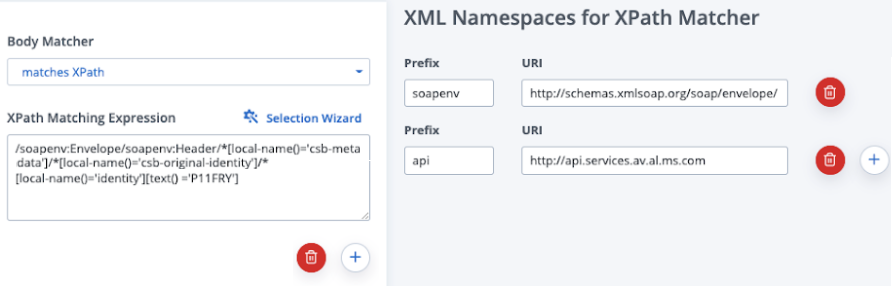
Match all conditions
To require the request pass all the matching conditions to be considered as a match, add more than one request matcher.
- Paste the sample XML/JSON only in the first matcher. The tree is generated from it. The sample carries over to the subsequent matchers so you don't have to paste it again each time.
- After you update your sample XML/JSON, any change in the sample XML/JSON is reflected in the other matchers, but it does not update the XPaths and JSON Paths already generated.
- After you update your sample XML/JSON, open the wizard again to update your matchers.
Best practices for XML content in generator wizards
For request matching to work correctly, add element values with special characters in a CDATA section.
Here are some examples of characters that require a CDATA section:
" (double quotes)< (less than)> (greater than)& (ampersand)' (apostrophe)
An example of how to wrap element values with special characters within CDATA:
<![CDATA[A & B are equal]]>