Analyze and address anomalies with AI Anomaly Analysis
AI Anomaly Analysis can help you quickly identify and remedy errors found related to anomalies in your tests. This can save you time by doing the work of identifying the errors for you, freeing you up to fix the errors in a more timely matter. BlazeMeter AI analyzes all detected anomalies, creates groups of anomalies that are related or similar and provides you with insights into addressing the anomalies.
In order to use AI Anomaly Detection for your tests, you need to enable AI features. For more information, see Manage AI consent.
Dynatrace APM insights
When Dynatrace APM is connected to a performance test, AI Anomaly Analysis can correlate detected anomalies with related metrics from the connected APM profile. These correlations provide additional context about affected application components and can help you investigate the likely source of a performance issue.
To configure the connection and view correlated APM information, see Integrate with DynaTrace APM.
Anomalies detected in your tests
When anomalies are detected in your tests, you see Anomalies detected and the Analyze with AI button. Click the button to start the AI anomaly analysis. The AI analysis runs in the background, so you can continue working with your report while it is running. You receive a notification when the anomaly analysis is complete.
You can view the progress of the anomaly analysis by clicking the AI Assistant button on the bottom right of your screen.
AI anomaly analysis can process up to 50 anomalies per test. If your test contains more than 50 anomalies, only the first 50 anomalies are processed.
If no anomalies are detected in your test, AI Anomaly Analysis is not available.
AI Assistant
When you click the AI Assistant button, you can view the AI Assistant panel.
The AI Assistant panel displays:
-
Anomalies detected—The number of anomalies detected in your test
-
Labels affected—The number of labels the detected anomalies affect
-
Anomalies processed—The current amount of anomalies already processed by the analysis while it is running
While the AI Anomaly Analysis is running, you see Processing in the AI Assistant panel. When the analysis is complete, click the View report button to go to the AI Anomaly Analysis tab to view the report.
You can close the AI Assistant panel while the analysis is running so you can use your time to continue working with the report. You receive a notification when the analysis is complete and you can view the report.
AI Anomaly Analysis tab
When the analysis is complete, you can view the report by clicking the View report button in the AI Assistant, or by clicking the AI Anomaly Analysistab. You can view the analysis by grouping anomalies by Insights or by Anomalies. You can also download the AI Anomaly Analysis by clicking the Download CSV button.
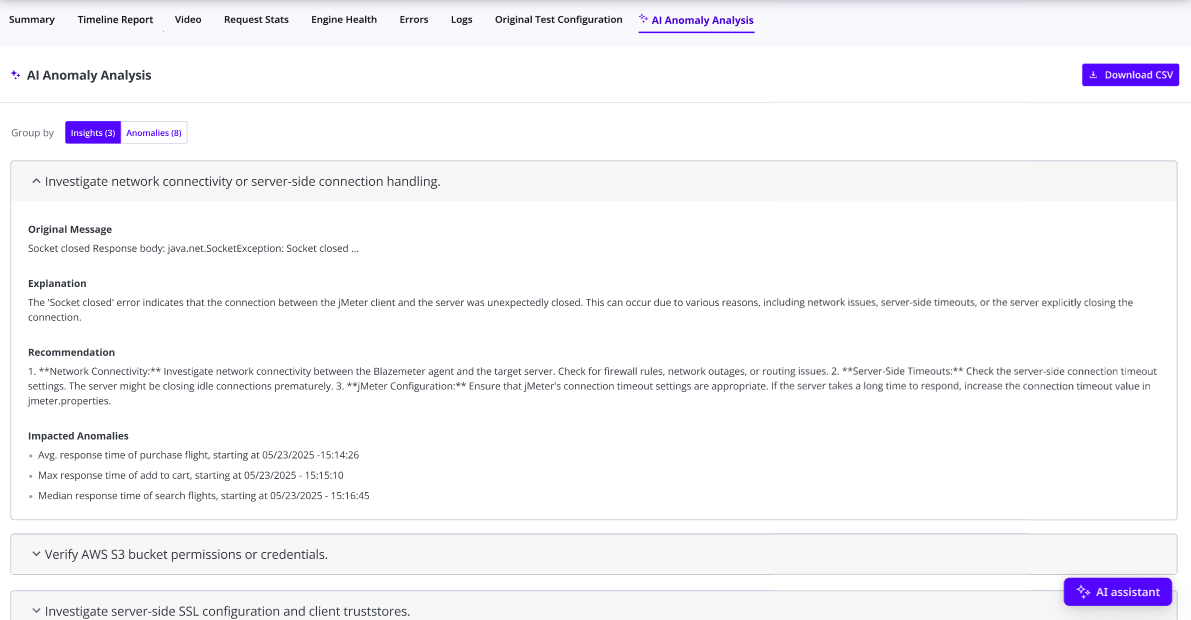
Grouping by anomalies lists all detected anomalies. Open the anomaly to view:
- Original message (
originalMessage): the error response body - Explanation (
errorExplanation): explanation of the error or insight as provided by the AI - Recommendation (
correctionSuggestion): AI recommended fixes for the errors
Grouping by insights groups related anomalies allowing you to address all related issues at the same time. Open an insight to view:
- Original message (
originalMessage): the error response body - Explanation (
errorExplanation): explanation of the error or insight as provided by the AI - Recommendation (
correctionSuggestion): AI recommended fixes for the errors Impacted anomalies: list of anomalies related to the error and insight
Correlated APM information: related metrics from the connected Dynatrace profile, when a correlation is available