Manage bucket-level tests
A bucket is how API Monitoring organizes tests into logical groupings. Each bucket can contain multiple tests.
Buckets differ from test suites (which are a collection of test cases with specific steps) in the way that they also drive execution and operations. You can run all tests in a bucket using the bucket dashboard, or trigger them programmatically with the bucket's trigger URL. You can also configure bucket-level notifications from bucket settings, with email and supported integrations like Slack or Microsoft Teams.
In this topic:
- The bucket dashboard
- Run bucket-level tests
- Monitor bucket activity and performance
- Manage bucket-level notifications and integrations
- Bucket limits
The bucket dashboard
The bucket dashboard features a top navigation with the following options:
-
Tests: Displays all tests in the bucket, in either card or list format.
-
Overview: Provides a consolidated view of bucket activity and performance.
The Overview includes:
-
Aggregated health metrics across all tests in the bucket (such as pass, fail, and degraded rates)
-
Response time percentiles (p50, p95, p99)
-
Error breakdowns
-
Ranked lists of the top failing tests, endpoints, and regions
-
Recent bucket-level test runs
You can filter these metrics by timeframe, region, and environment to focus your analysis.
-
-
Settings: Displays bucket configuration, including name, trigger URL, SSL verification, notifications, integrations, and secrets.
-
Shared Environments: Manages shared environment settings that apply to all tests in the bucket,
Run bucket-level tests
You can run bucket-level tests through the UI or via the Bucket Trigger URL.
To run all tests in a bucket:
-
Run from the dashboard:
Use the Run All Tests button in your bucket's dashboard to execute all tests grouped under that bucket. This option is best for on-demand, manual testing initiated through the web interface.
You can skip a test from running during a bucket-level test from the dashboard by unmarking the circle next to the test name.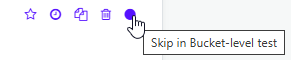
-
Run using the trigger URL (API):
Each bucket is assigned a unique trigger URL, which can be found in Bucket Settings. Trigger URLs allow you to initiate a bucket-level test programmatically, ideal for integrating test execution into CI/CD pipelines, external monitoring tools, or custom automation scripts. You can initiate the call using tools like curl or as part of a webhook from another service. For more information on trigger URLs, see Build/deployment integration.
Note that the trigger URL feature is only available with a subscription plan.
Monitor bucket activity and performance
From the Overview tab, you can monitor both aggregated metrics and recent bucket-level test runs.
Understand and use bucket overview metrics
At the top of the Overview page, a summary displays metrics across all tests in the bucket. Metrics are calculated cumulatively across all test runs in the bucket and provide a high-level view of performance and reliability.
Available metrics include:
-
Health metrics
-
Uptime (tests with 100% success rate)
-
Degraded (tests with partial success)
-
Failed (tests with no successful runs)
-
-
Performance metrics
-
Response time percentiles (50th, 95th, and 99th percentile)
-
-
Error and traffic metrics
-
Total requests executed
-
Counts of 2xx, 4xx, and 5xx responses
-
Assertion failures
-
-
Top failure insights
-
Top failing tests
-
Top failing endpoints
-
Top failing regions
-
You can filter the metrics to refine your analysis by timeframe, region, or environment.
Use the Overview metrics to quickly identify where issues are concentrated, for example:
-
Review uptime and failure rates to assess overall test health
-
Use response time percentiles to detect performance degradation
-
Check error breakdowns to understand types of failures
-
Use the Top 5 lists to pinpoint the tests, endpoints, or regions most affected
View bucket-level test runs and results
Below the summary, a list of recent bucket-level runs is displayed. The run list shows up to 50 recent runs, with the following information:
-
Time of execution
-
Source (for example, dashboard or trigger URL)
-
Result (Passed or Failed)
-
Counts for tests, requests, assertions, and scripts
-
A View Tests link to open detailed results
Manage bucket-level notifications and integrations
To configure bucket-level email and integrations settings:
-
From the dashboard, navigate to Settings.
-
Under Email Notification, choose whether to notify all members of the team, or select individual members.
-
Under Integrations Notifications, use the toggle to enable or disable integrations with third-party services. Currently supported apps are Microsoft Teams and Slack.
Bucket limits
As you start creating more tests in your buckets, there are certain limits that are good to keep in mind when creating and organizing your buckets and tests.
Currently, our buckets have certain limits when running a high number of tests, which is based on whether your team is using cloud locations and/or On-premise Radar agents:
- 200 tests can be simultaneously running per cloud location (example: US Virginia) per bucket
- 200 tests can be simultaneously running amongst all on-premise Radar Agents (example: multiple tests running from 10 different agents) in a bucket
This is true for tests which are running or being executed concurrently. If you go over these limits, any additional test runs will be added to a queue, and will be executed as soon as the number of concurrent tests is less than 200. This does increase the chances of tests failing for taking more than 10 minutes to execute, which is the system limit for the execution time of a test. For more information, see Example scenarios. To avoid potential issues with your tests such as delays or expiration, we recommend:
- Keeping the number of tests in a bucket to less than 150
- Running your tests from multiple cloud locations
- Splitting up tests into multiple buckets. For more information on how to move one or more tests to a different bucket, see Move a test to a different bucket.
- Running your tests from multiple cloud locations. Set a different location for one or more tests. For more information, see Select Test Locations in Global locations.
- Adjusting the schedule of your tests to minimize the number of tests running concurrently.
For each bucket with locations that are running greater than 85% of the maximum limit for concurrent tests per location per bucket, a warning message indicating the location name and the percentage of utilization of test concurrency is displayed on the dashboard for that bucket as follows:
