Add transactions from file
To simulate the behavior of a service, you add transaction definitions to the virtual service. Clone and edit imported transactions as needed to tune the matching criteria to create similar transactions that were not available in the file.
You can add transactions from a variety of sources: The easiest way to add transactions is uploading files in a supported format. Additionally, you can manually add transactions or record them. To learn how to define all transaction fields in detail, see Edit transactions.
Prerequisites
Prepare the file to upload. The file should contain all of the transactions that you want to use for your virtual service. The transaction repository supports HTTP(s) stateless transactions. SOAP over HTTP(s) transactions are supported as long as you provide the required headers.
The following file formats are supported:
- OpenAPI Specification - Version 2.0 (Swagger) - JSON or YAML file
-
OpenAPI Specification - Version 3.0 - JSON or YAML file
To import multiple OpenAPI files in a ZIP archive, ensure that the main file in the zip is calledindex.jsonorindex.yaml. - HAR files
- Request and response pairs (RR pairs)Upload RR pairs as a zip file containing one or more pairs of requests and their responses. Name the files pair_x-req and pair_x-rsp, respectively, where the unique pair_x string is the same across pairs. For example:
login-req.txtandlogin-rsp.txt.are an RR pair. -
WSDL files
To import multiple WSDL files in a ZIP format, ensure that the main file in the zip is calledindex.wsdl. - An exported transactions JSON file, created from the export operation from BlazeMeter's Service drop-down list. To learn more, see Export service with all transactions.
- A JSON file created by the BlazeMeter proxy recorder.
- WireMock/Mocklab definitions. To learn more, see Share transactions between virtual services and WireMock.
Add transactions from a file
Follow these steps:
- Log in to your BlazeMeter account and click the Service virtualization tab.
- Click Asset catalog.
-
Drag your file into the upload area, or click the area to browse for the file you want.

The Import transactions dialog opens.
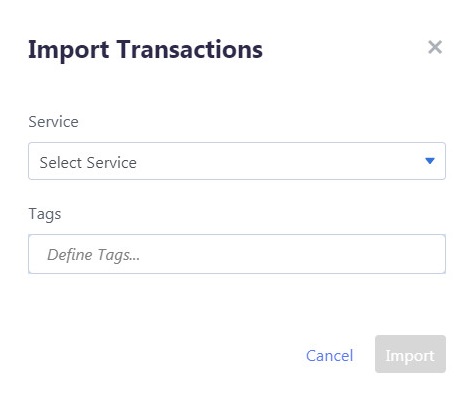
- Select the service to which you want to add these transactions, or create a new one
- (Optional) To assign tags to transactions, type the tag names in the Tags field and press enter.
To enter multiple tags, press enter after each tag name. - Click Import.
The transactions are added to the transaction repository as part of the selected service.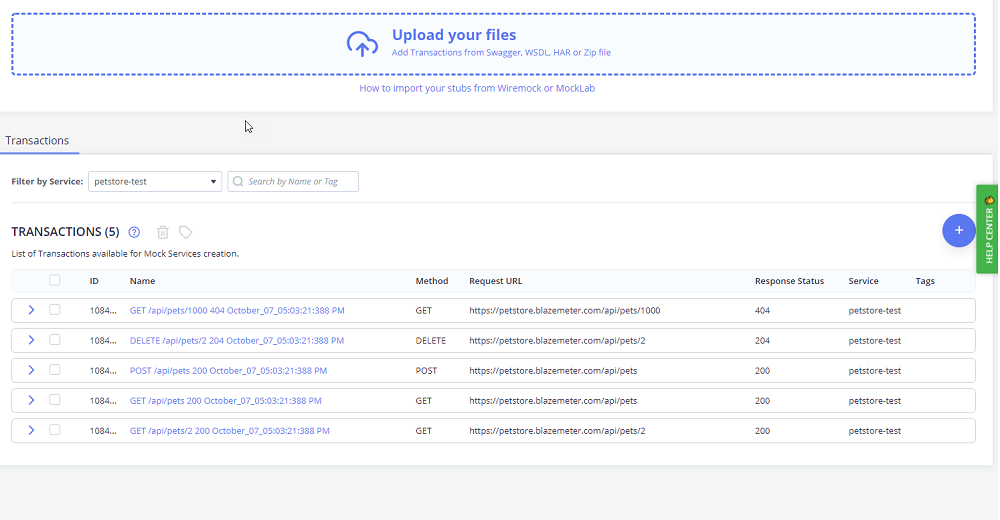
Clone transactions
Follow these steps:
- Log in to your BlazeMeter account and click the Service virtualization tab.
- Click the Asset catalog tab.
- Click the Transactions tab.
- In the Actions column, click the Clone transactions button.
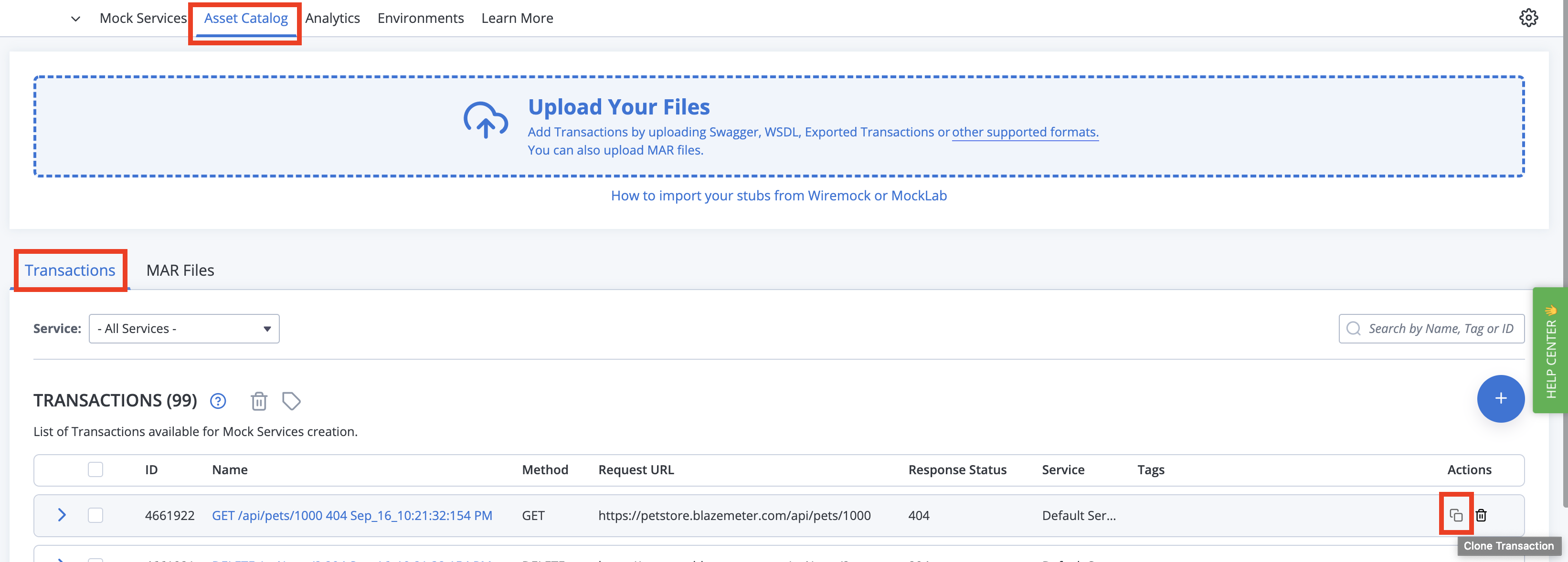
A duplicate of the transaction is created.
You can expand the new transaction and make any required edits there. Edit transactions