Create APM credentials
You can integrate application performance monitoring (APM) tools into your workspace using credentials.
APM credentials consist of the authentication details (such as API keys, access tokens, or secret keys) required to securely connect BlazeMeter to your APM (Application Performance Monitoring) tool. These credentials authorize BlazeMeter to retrieve performance data from the connected APM system.
Credentials can be shared across multiple APM profiles to streamline configuration and ensure consistency.
Add APM credentials
To add APM credentials, follow these steps:
- Click the Cog icon
 at the top right of the BlazeMeter UI to open the Settings. Go to Settings > Workspace > APM credentials.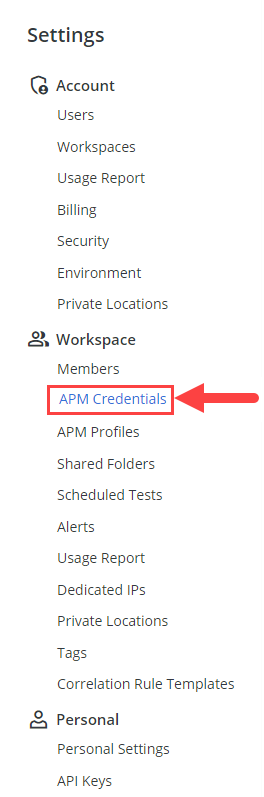
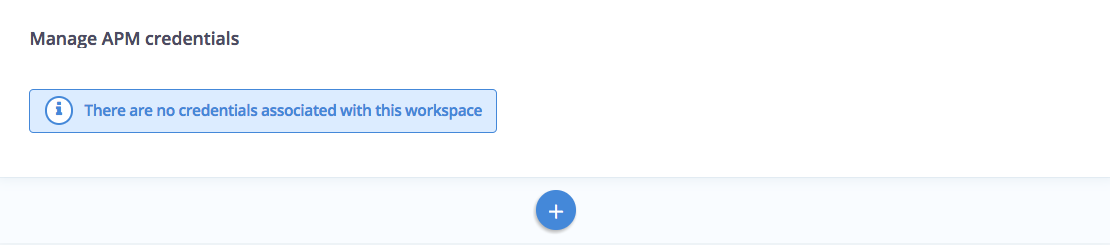
- Click the Plus button.
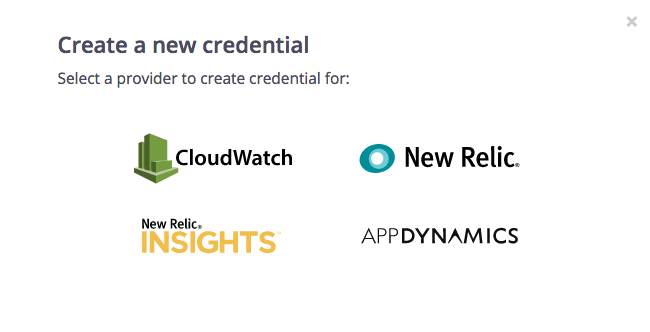
- Select the APM tool of your choice.
-
Enter the credential settings for the selected APM:
 AppDynamics
The AppDynamics integration connects to an AppDynamics Controller to retrieve configuration data and send back information about the monitored environment. Fill in the following fields:
- Credential name: A unique name for the credential, without spaces or special characters.
- Private location ID (Optional): A unique key associated with a private location that can be found under BlazeMeter settings -> Workspaces -> Private locations -> <Your private location> ->Private location details, under the Id column.
- Controller host: The hostname or IP address of the AppDynamics controller, for example, 192.168.1.22 or myhost or myhost.abc.com. This is the same host used to access the AppDynamics browser-based user interface.
- Controller port: The port on which the controller listens for integration traffic.
- Choose authentication method: Either Username/password or Access token.
- Username/password
- Account name: The name of the account listed in the Controller.
- Username: The name of the user listed in AppDynamics.
- Access key: A unique key associated with the Controller account.
- Access token
- Access token: A unique key associated with the controller account, generated in AppDynamics either from the Controller UI or through an API.
- Username/password
When you have completed the form, click Validate, then Next. The credential is created:

For more information, see Integrate with AppDynamics.
CloudWatch
Enter your new CloudWatch IAM key details:
- IAM Key Name: Enter a unique name for this credential. This name will help you identify the key later. Avoid using special characters or spaces.
- IAM Access Key ID: Enter the access key ID provided when creating your IAM user in AWS.
- IAM Secret Access Key: Enter the secret access key associated with the access key ID. Copy it directly from AWS when creating the IAM user, as it will not be displayed again. Avoid storing the secret key in insecure locations.
For more information, see BlazeMeter's integration with CloudWatch
Datadog
Fill in the following fields:
Basic configuration:
- Key name - Name of the key you want to create and reference in BlazeMeter
- Datadog APM URL -The full URL to access your Datadog environment (exclude the trailing / in your URL, for example, http://yourHostAtDatadog.com).
- App key - Authentication key, used in conjunction with your organization’s API key, that gives users access to Datadog’s programmatic API.
- API key - Authentication key granting BlazeMeter access to Datadog's API for data transmission and retrieval. API keys are unique to your organization. An API key is required by the Datadog agent to submit metrics and events to Datadog. For more information, see Datadog documentation.
Advanced configuration:
- Private location ID - The private location to use to run the APM functionality (for information where to get this value, see Find the harbor ID and ship ID).
If you're using Datadog on the cloud, you don't need to provide the private location ID. The integration will work seamlessly without it.
For more information, see Integrate with datadog
DX APM
This configuration supports two-way integration between DX APM and BlazeMeter. Fill in the following fields:
- Configuration name - A name for the configuration to be used in BlazeMeter
- DX APM security token - A token created in DX APM
- DX APM URL - The URL for accessing the DX APM Webview or the DX APM Team Center (without the port number)
- Port number for DX APM Webview/DX APM Team Center - If the port is not provided, the default value 8080 is used
- Port number for metrics API - Port number for DX APM metrics API. If no port number is provided, the default value 8081 is used
- Private location ID - Leave empty
- Filter for DX APM agents that show up in the BlazeMeter report - Enter a regular expression. If not, all agents are selected
Advanced settings
For more information, see Integrate BlazeMeter with DX APM.
Dynatrace
This configuration supports integration between Dynatrace and BlazeMeter. Fill in the following fields:
Basic configuration:
- Key name - Name of the key you want to create and reference in BlazeMeter
- Environment ID -The full URL containing your environment ID (Exclude the trailing / in your URL, for example, http://yourHostAtDynatrace.com).
- Token - Access token for your DynaTrace environment
Advanced configuration:
- Private location ID - The ID of the private location to use to run the APM functionality (see here for where to get this value).
If you're using DynaTrace on the cloud, you don't need to provide the private location ID. The integration will work seamlessly without it.
For more information, see Integrate with DynaTrace APM.
New Relic
This configuration supports integration between New Relic APM and BlazeMeter. Fill in the following fields:
Select which New Relic API key to use Select Create a new New Relic API Key.
New Relic key title Type a name for your New Relic API key. New Relic API key Paste your New Relic REST API key. For more information, see BlazeMeter's integrations with New Relic.
New Relic Infrastructure
This configuration supports integration between New Relic Infrastructure APM and BlazeMeter. Fill in the following fields:
Select which New Relic Insights API query key to use Select Create a new New Relic Insights API Query Key.
Insights was the name for the New Relic product that previously governed the reporting of custom events, and the ability to query and chart New Relic data. These features are now a fundamental part of the New Relic platform and are no longer governed by the Insights product or name.Profile Name Type a name for your New Relic Infrastructure profile (configuration). Account Id Paste your New Relic account ID. New Relic Insights API Query key Paste your New Relic API query key. For more information, see Integrate with New Relic infrastructure.
New Relic Insights
This configuration supports integration between New Relic Insights and API Monitoring. Fill in the following fields:
Insights was the name for the New Relic product that previously governed the reporting of custom events, and the ability to query and chart New Relic data. These features are now a fundamental part of the New Relic platform and are no longer governed by the Insights product or name.- Credential note - Provide a descriptive note for this credential. Use a name or purpose that helps you identify this credential easily, such as Team A Monitoring.
- Account ID -Enter your New Relic account ID. This is the numeric identifier associated with your New Relic Insights account.
- Credential Key - Enter your New Relic API key. Ensure it is entered exactly as provided by New Relic. The API key authorizes access to Insights data.
For more information, see New Relic Insights Into API Monitoring.
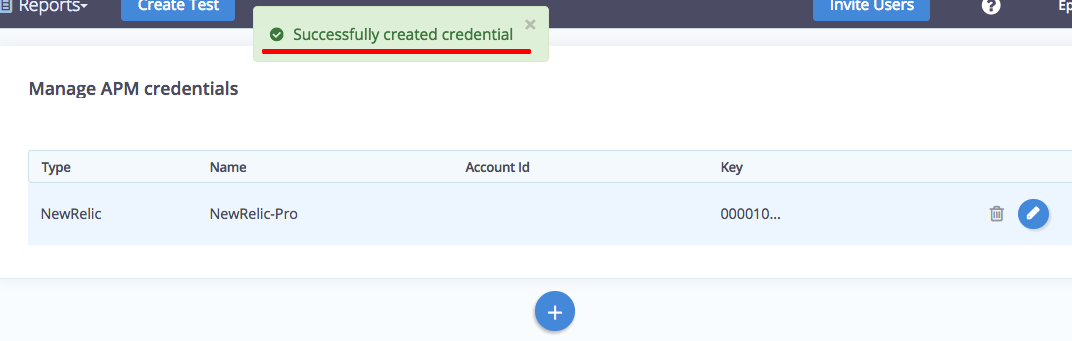
Once your APM credentials are added, they will appear in the list below along with a confirmation message.
Delete APM credentials
To delete APM credentials in BlazeMeter, follow these steps:
-
Click the Cog icon
at the top right of the BlazeMeter UI to open the Settings. -
In the Workplace section, click APM credentials.
-
On the Manage APM credentials page, select the table row containing the required credentials, and click the trash can.

Once confirmed, the selected APM credential will be permanently deleted from your BlazeMeter workspace.