Create a Performance test
BlazeMeter engines run on Taurus and support various different open-source testing tools. Upload your own JMX script to run a JMeter test, or run a Gatling test by uploading a .scala file. The same goes for K6, Selenium Java/Ruby/Python and others. Additional files distributed to every test engine can be added too.
Create a Performance Test
Follow these steps:
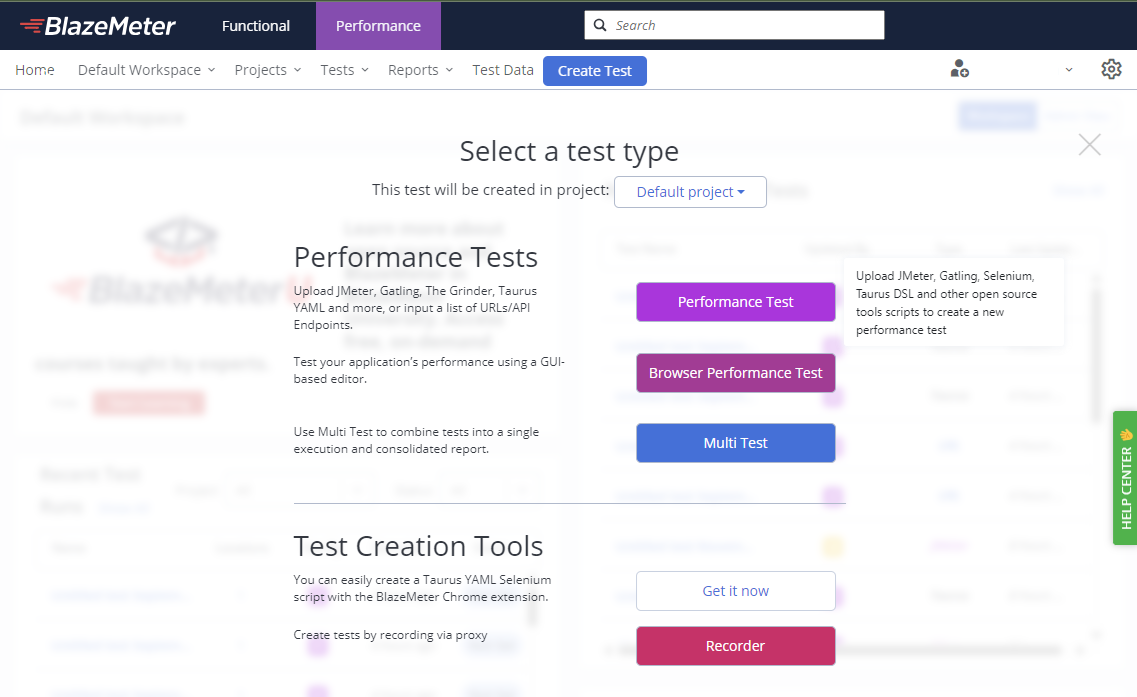
- In the main menu, click the Performance tab.
- Click Create Test.
- Select a project.
- Click Performance Test.
The Configuration tab for the test opens.
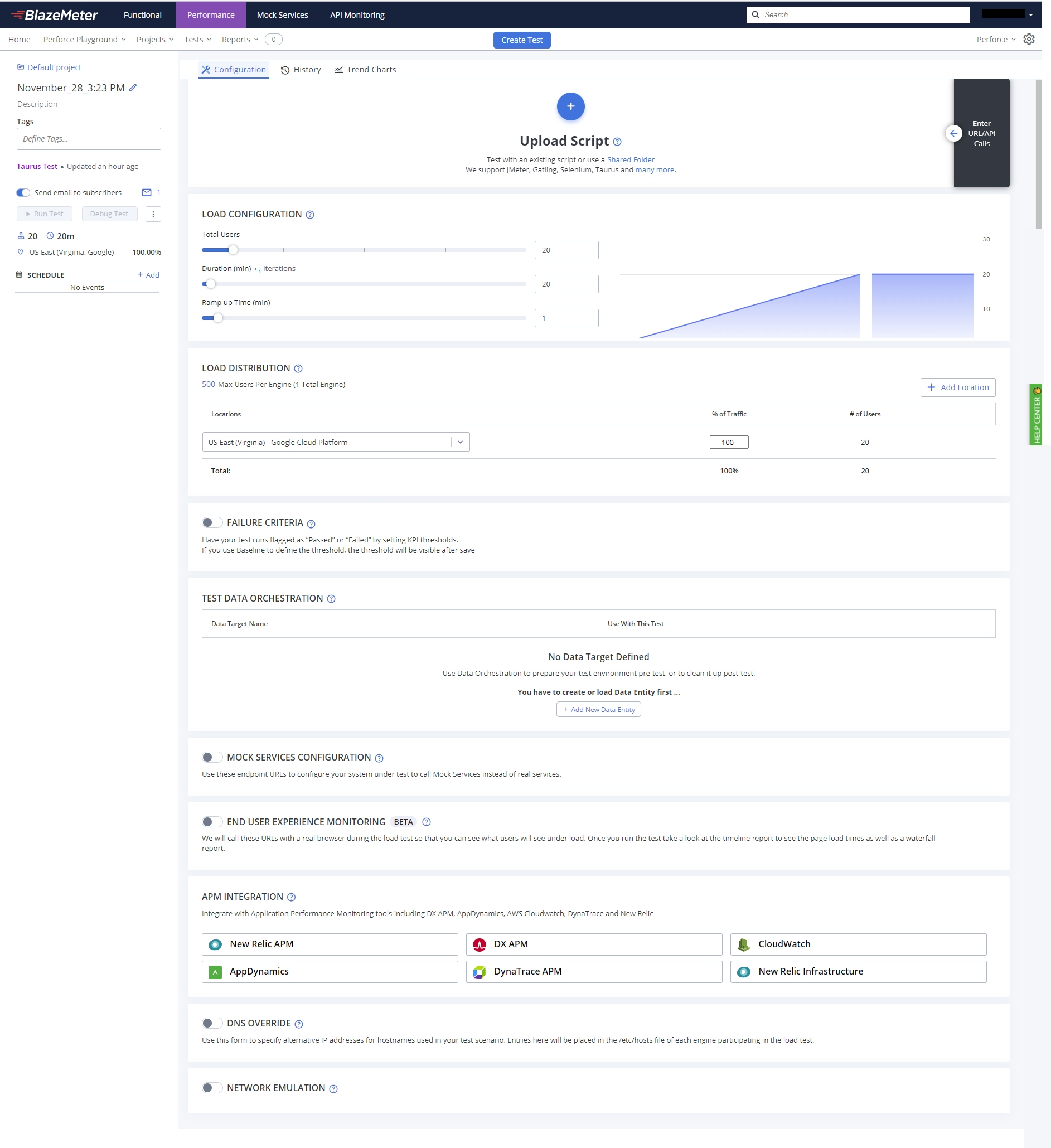
If you uploaded a test script but BlazeMeter did not automatically recognize what type of test it is, consider adding a YAML configuration file to help identify it and configure the system.
Configure a test
How you configure your test from here depends on what type of test you want to use. The options are:
- If you uploaded a JMeter JMX script, see Creating a JMeter Test.
- If you uploaded a Taurus YAML configuration file with your script, see Creating a Taurus Test.
- If you want to create a Scriptless URL or API test, see Creating a URL/API Performance Test.
- If you uploaded a script without including a YAML configuration file, fill out the configuration options in your test.
Load testing best practices
To learn more about advanced performance test configuration options, see:
- Scenario definition
- Load configuration
- Load distribution
- Virtual Services configuration
- Failure criteria
- End user experience monitoring
- APM integration
- JMeter properties
- DNS override
- Network emulation
- Duplicate, delete or move a test
- Debug test: Low-scale test run, enhanced logging (NTC)
- Original test configuration report
- Reporting selectors for scenario and location